Project Tools
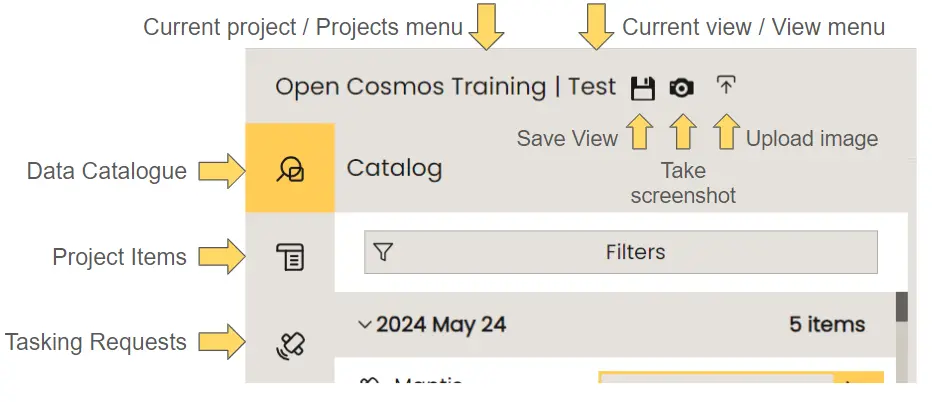
Within each project, users will be able to interact with a collection of DataCosmos tools directly from the UI.
In this section, we will explain how to view each of these elements, including:
- Project Items
- Data Views
- Tasking requests
Items
Project items stores all image and vector data that has been added to the project.
Users with the appropriate permissions can add images to the project by clicking the Add Item to Project tool in the relevant product card.
How to add products to project items.
Tasking
Satellite observation tasking requests specific to the current project can be viewed from the tasking tab. Here users can see the current status of the tasking request view the area of interest (AOI) and availble swaths for the AOI.
How to add products to project items.
More information of tasking requests are available here
Views
Users can save their current View by "bookmarking" it within a specific project. This feature includes saving the main data viewer wind, including the slected satellite imagery and vector layers. It is particularly useful when users have customized the view, such as applying specific colour corrections or band algebra.
How to create a new data View within a project.
Saved Views are accessble from the drop down menu in the image taskbar.
How to open saved Views from within a project.
Alternatively, saved Views can be viewed and opend from the DataCosmos directory.
Here, users can filter or search the availble views by several parameters, including date, name, and project. Selecting one of these views will redirect the user to the DataCosmos data viewer, with the chosen View. Users can continue to edit the data anlaysis task by selecting continue editing. This will re-activate all of the DataCosmos tools.
How to open saved Views from the DataCosmos Directory.
More information on customising the visualisation of images can be found here