Scene Tasking
NOTE
For a comparison between Coverage Tasking and Scene Tasking, see the Tasking page.
Scene tasking requests provide user's the flexibility to select a specific start time, end time and roll off-pointing angle for every satellite Opportunity available in a selected time period. The specified parameters represent a satellite Activity, which is represented by a Swath in the map view. Each activity that makes up a tasking request will be subject to approval by the Open Cosmos operations team.
Search for tasking opportunities
The first step in creating a scene tasking request is to perform a search for tasking opportunities for a given list of satellites, areas of interest and opportunity filters defined by the user. This opportunity search algorithm obtains the latest TLE’s for the chosen satellites and performs a propagation over the given time period. Both the chosen sensor’s Field Of View (FOV) and the satellites default tasking attitude mode are considered when determining opportunities.
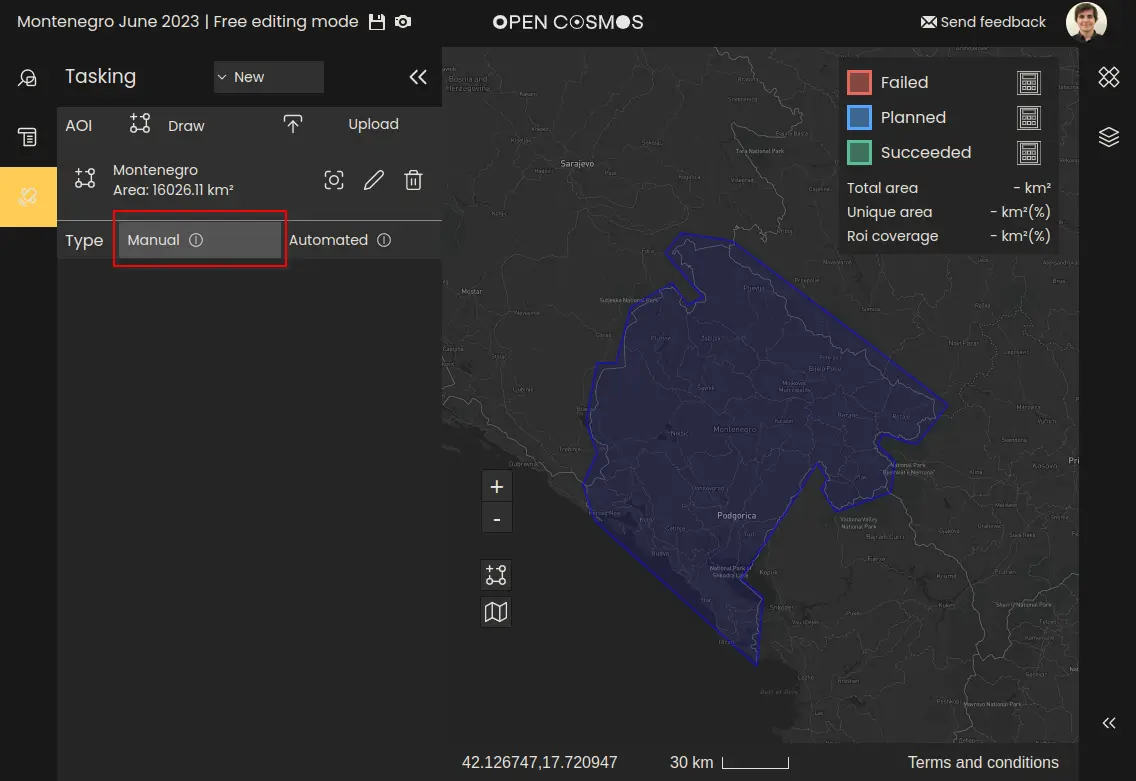
To start creating a scene tasking request, first select the “Scene” button after creating the region(s) of interest:
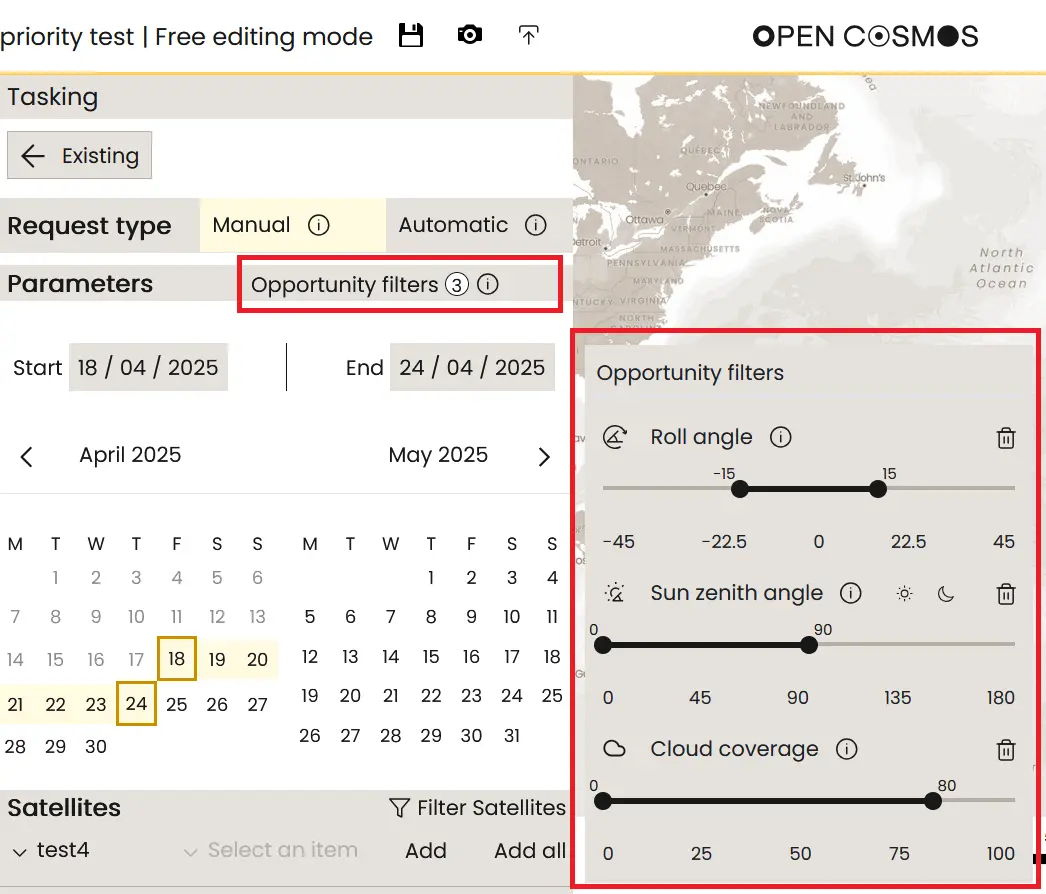
Configure tasking opportunity filters
Currently, there are three types of opportunity filters supported:
- Roll Angle: defines the range of off-nadir roll angles to restrict the search by. Reducing the absolute roll angle limit leads to suggested activities with a lower Observation Zenith Angle (OZA) which improves image quality.
- Sun Zenith Angle (SZA): defines the angle between the ground zenith vector, and the sun vector from this ground node. An example use case is setting the SZA constraint to be limited between 0 and 90°, which ensures suggested activities are always illuminated.
- Cloud Cover: defines the maximum cloud coverage allowed for the suggested opportunities. This is compared to weather forecast data to filter the opportunities returned to the user.
These constraints are applied globally across all satellites in the opportunity search:
Select tasking period
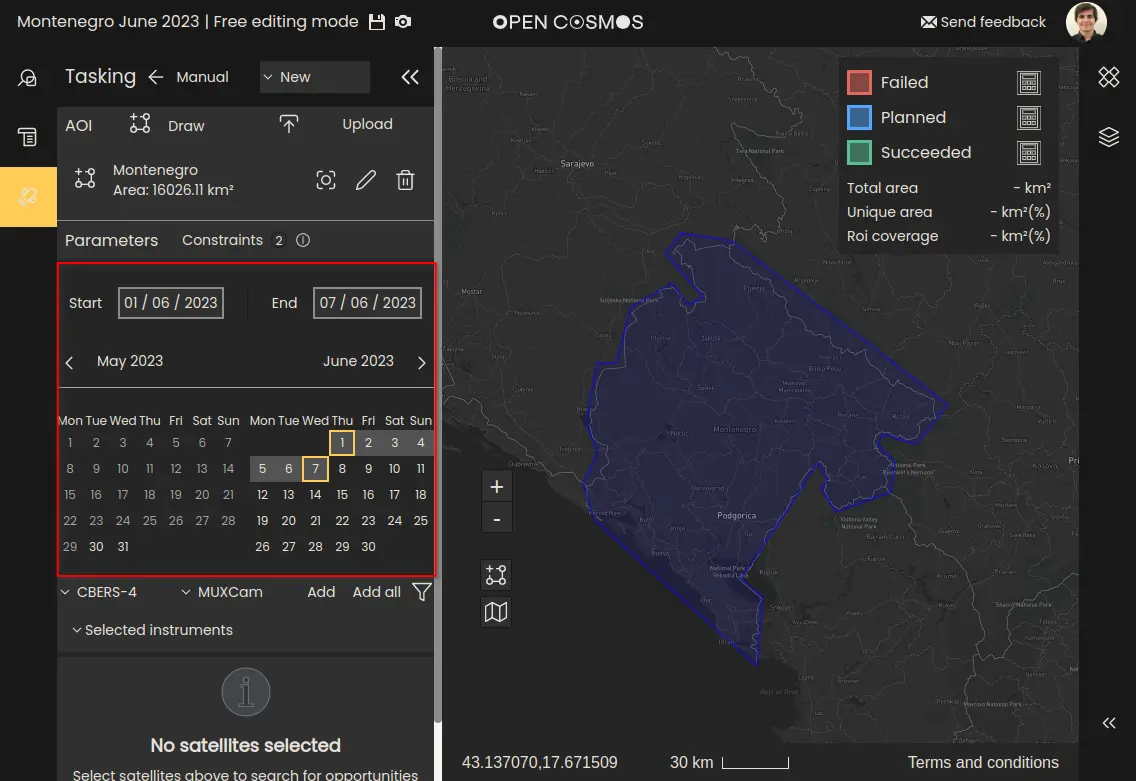
Next a pair of start and end dates must be applied to constrain the search, using the calendar view:
NOTE
Tasking requests can only be made up to 1 week in advance. The calendar allows for searching for opportunities up to 3 months in advance, but only those within a week can be selected for the tasking request. Additionally, depending on the satellite and instrument, there will be a minimum advance notice for tasking requests.
Select satellite platform
Next, select the satellites and instruments to task from the dropdown menus. Multiple satellites and instruments from the same satellite can be selected:
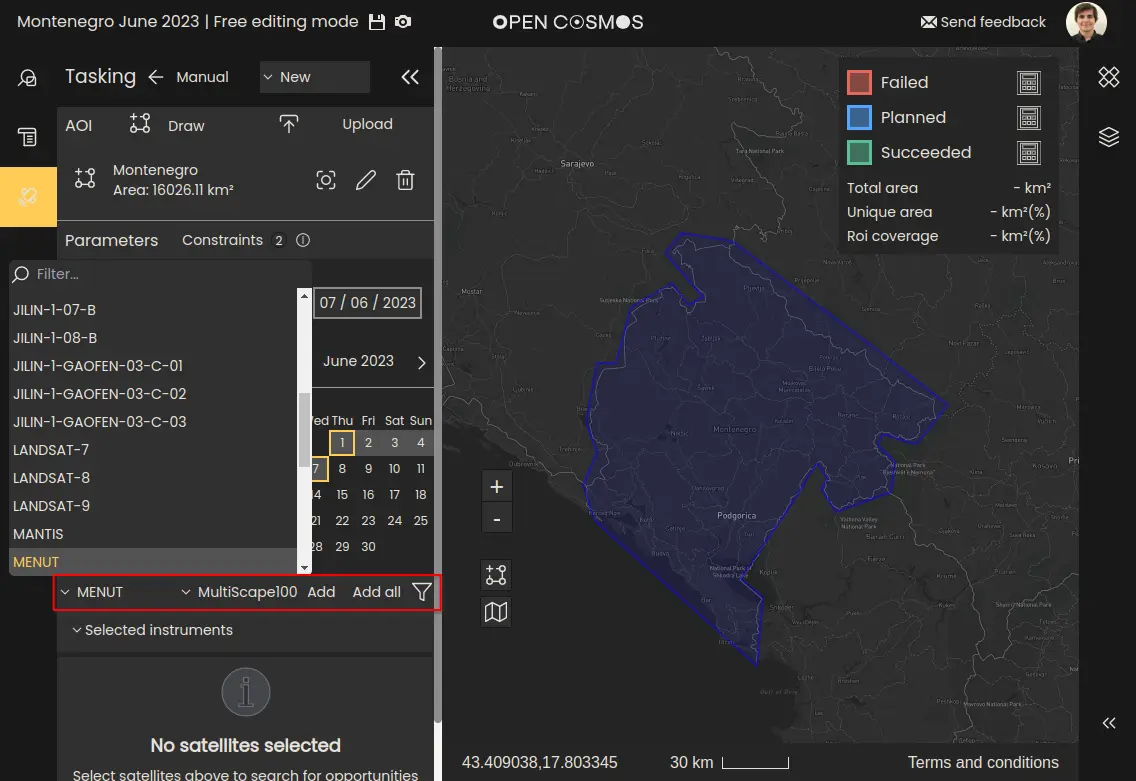
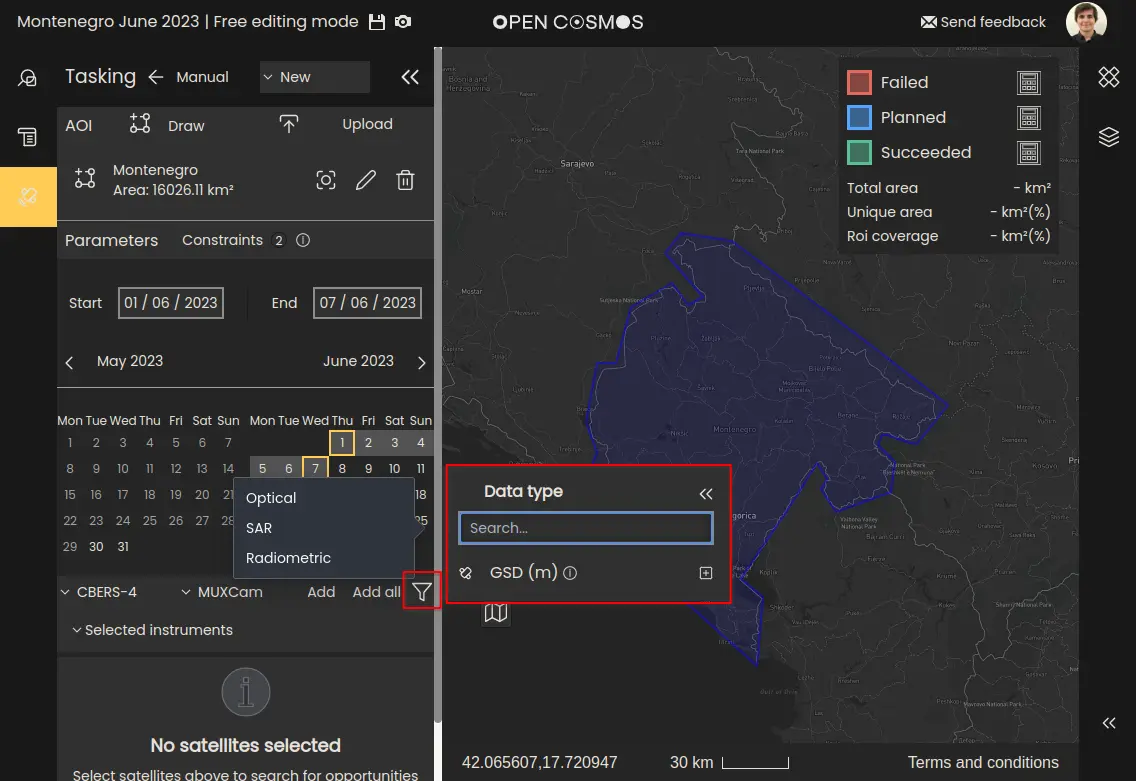
There is a filter button to filter the list of satellites and instruments. The current filters include:
-
Data Type: restrict the instruments list to those of a particular type i.e. Optical, SAR, Radiometric*.
-
Ground Sample Distance (GSD): restricts the instruments list to the range of GSD values entered.
NOTE
Currently only tasking Optical instruments is supported.
Search results
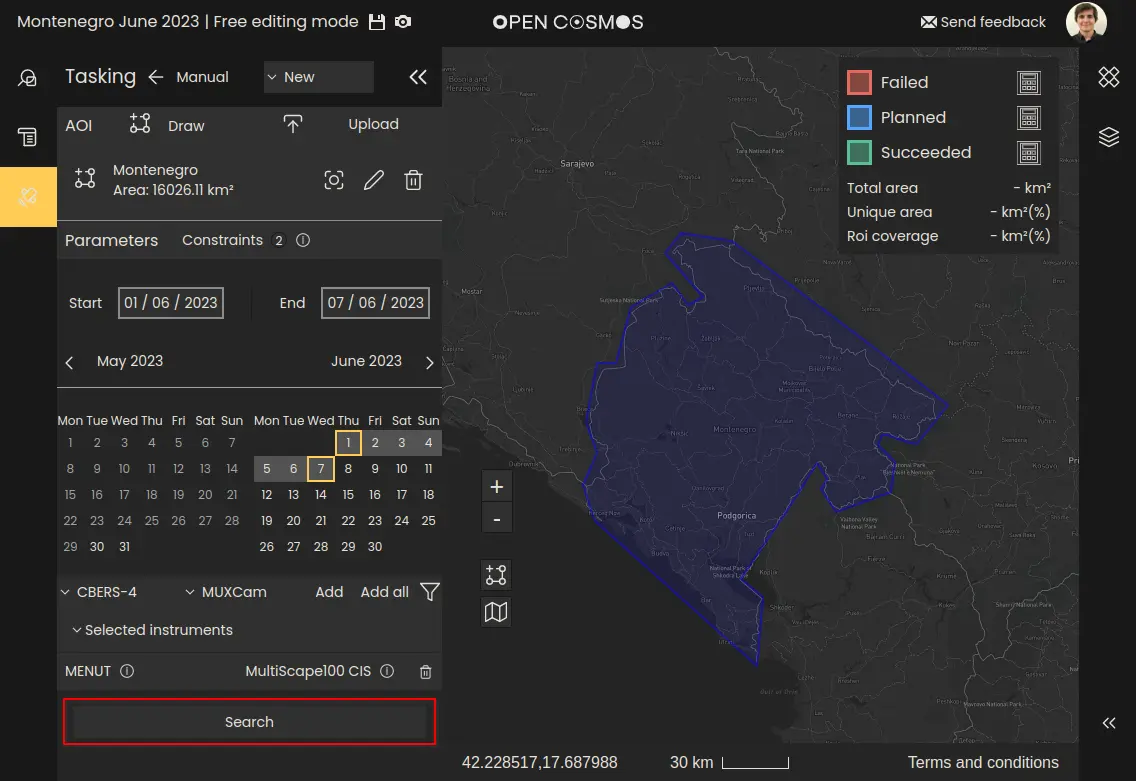
Once all the required inputs are selected, click the “Search” button to begin the opportunity search. This may take a few seconds depending on the size of the region. Opportunity search for larger regions typically takes longer.
Field of regard
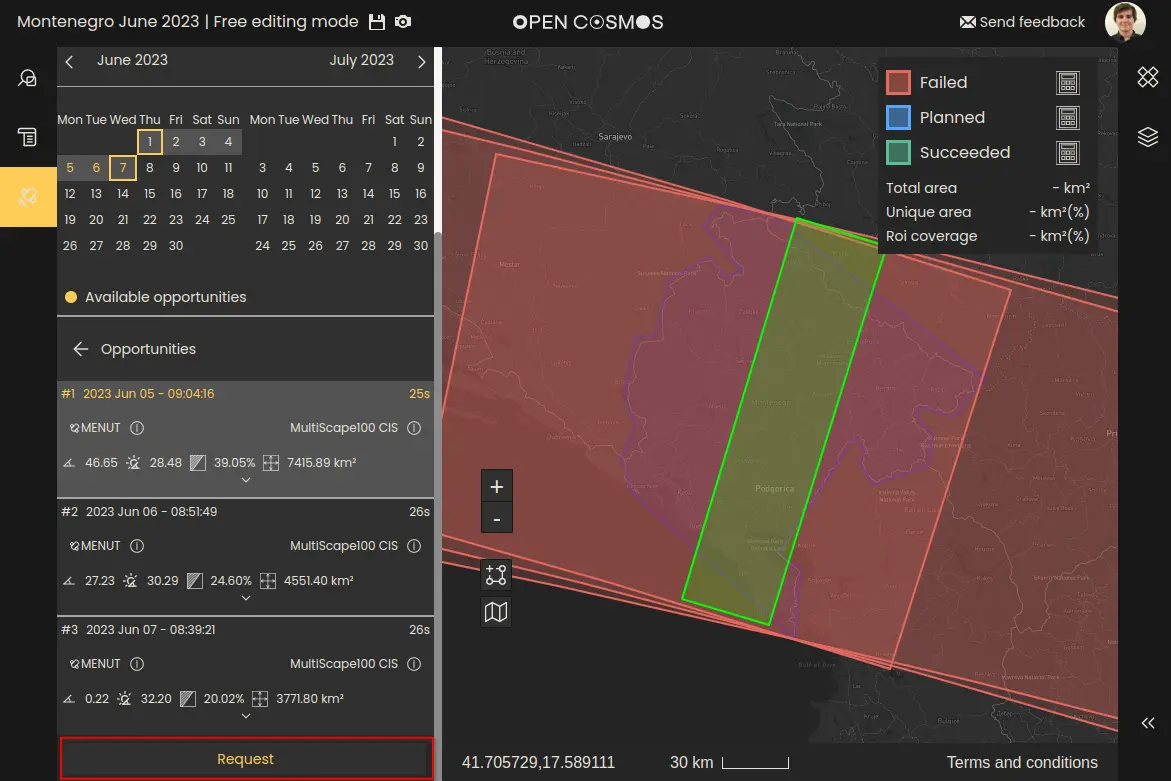
Once the search is complete, a list of satellite opportunities will appear in the bottom left. In the example, three opportunities were found:
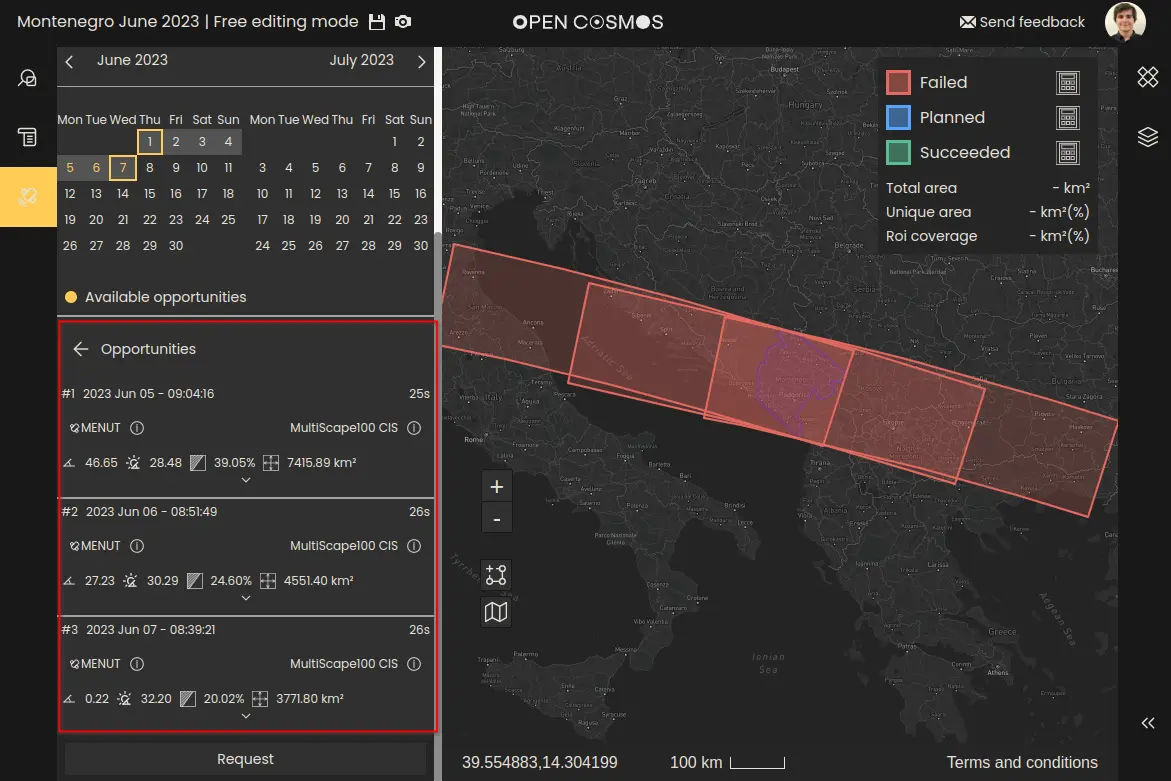
Each opportunity maps to a Field of Regard on the map view - represented by the red layers.
A cloud coverage forecast is calculated for each opportunity. Only the minimum cloud coverage on the entire Field of Regard is displayed on the opportunity list. Once an opportunity is selected, the cloud coverage forecast is displayed directly in the map view to aid in the selection of the swath. Keep in mind that cloud coverage forecast can be incorrect and that accuracy improves closer to the acquisition date.
The field of regard is the area a satellite from which the satellite is able to capture a portion of, taking into account their entire roll capability.
Defining the swath area
A satellite is never able to capture the full extent of a field of regard during a single activity, instead a defined roll angle must be selected which produces an observable Swath within the field of regard, which will describes the area of the land surface to be captured by the instrument.
When one of the opportunities is selected, it expands to allow a specific roll angle, start and end dates for the activity to be selected. The roll off-pointing and timing limits are dependent on the satellite and instrument selected.
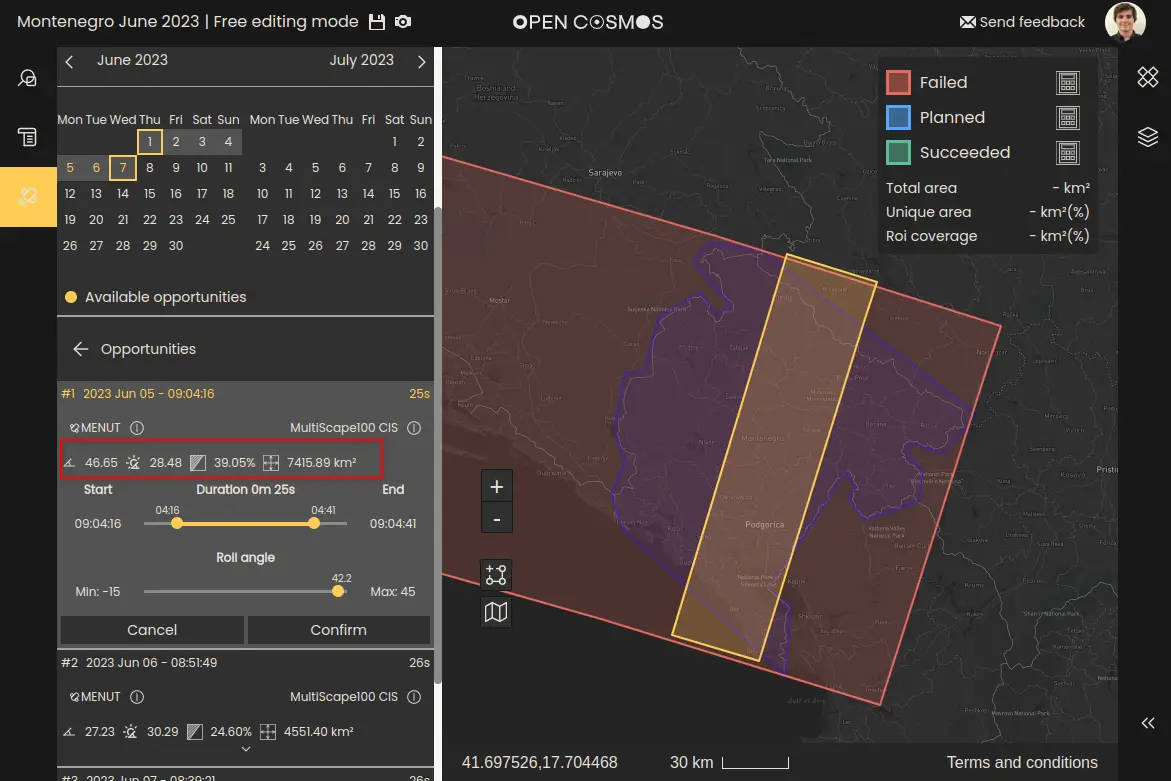
Adjusting the roll angle and duration sliders will update the Swath displayed on the map view (the yellow layer) in real time. In addition, the following metrics are displayed and updated in real time, as the swath is edited:
- OZA at the swath centrepoint
- SZA at the swath centrepoint
- Coverage of the area of interest with the selected swath
- Total imaged area of the swath
These metrics are displayed above the sliders:
Once satisfied with the swath, selecting “Confirm” will turn the swath layer green in the map view, and will remain visible when positioning other swaths. Once satisfied with all the confirmed swaths, select the “Request” button to advance to the request summary overlay:
Request summary
In the request summary overlay, you can view a summary of the tasking request, including the following statistics:
- Joined overlapping area: The total area of the intersection of the swaths (overlaps are only considered once).
- Total imaged area: The sum of the areas captured by each swath (overlaps considered multiple times).
- Region of interest coverage: The proportion of the region of interest that is captured by the swaths.
There is an option to add a note to the request, to inform Open Cosmos of any special requests or information. Selecting “Request” will send the tasking request to Open Cosmos for review.
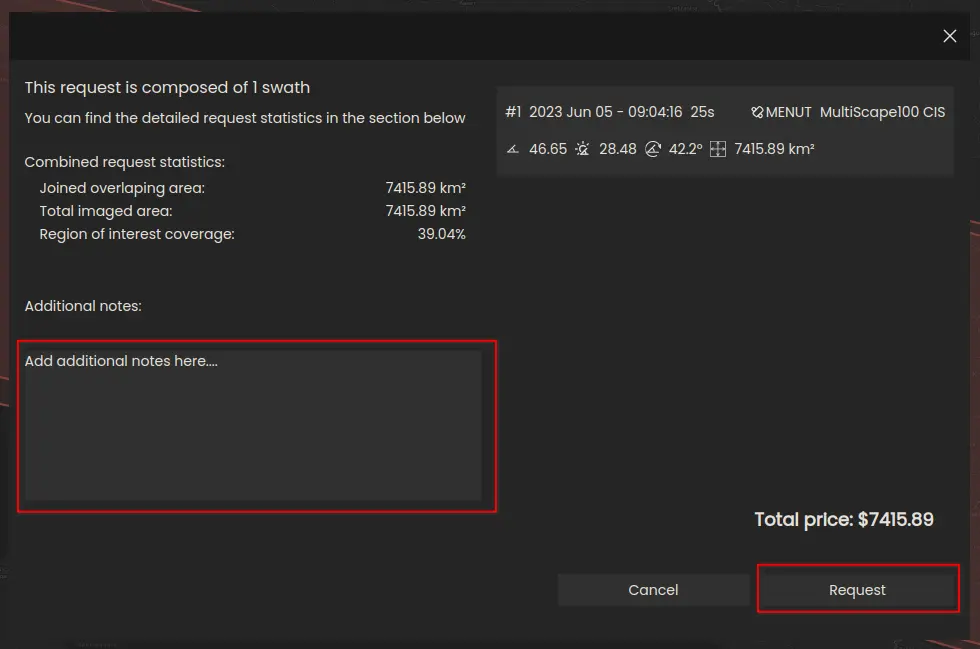
The price shown above is a placeholder and not representative of the cost of a real tasking request.
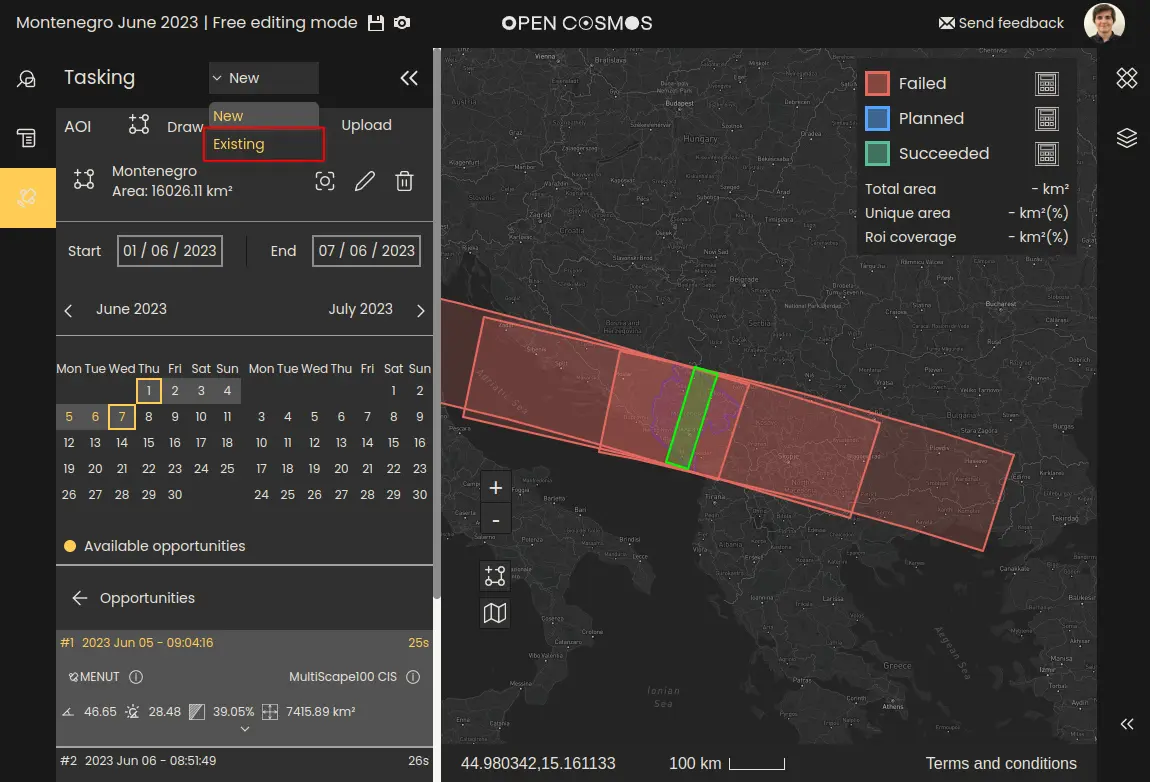
If the tasking request was successfully created, the list of tasking requests created within the project can be viewed from the existing tasking requests panel by opening the dropdown in the top-left and selecting “Existing”:
If there is an issue with creating tasking requests, please contact the DataCosmos helpdesk at: datacosmos-help@opencosmos.odoo.com
Where to next