Coverage Tasking
NOTE
Coverage tasking will be introduced in a future iteration of DataCosmos.
NOTE
For a comparison between Coverage Tasking and Scene Tasking, see the Tasking page.
Coverage tasking will allow users to only need to select the desired time window, the satellites and instruments to task and any objectives/constraints to apply. Each coverage request will be subject to aproval by the Open Cosmos operations team. An optimisation algorithm is used to determine the individual satellite activities that will fulfil the request, which are verified by the Open Cosmos operations team before scheduling.
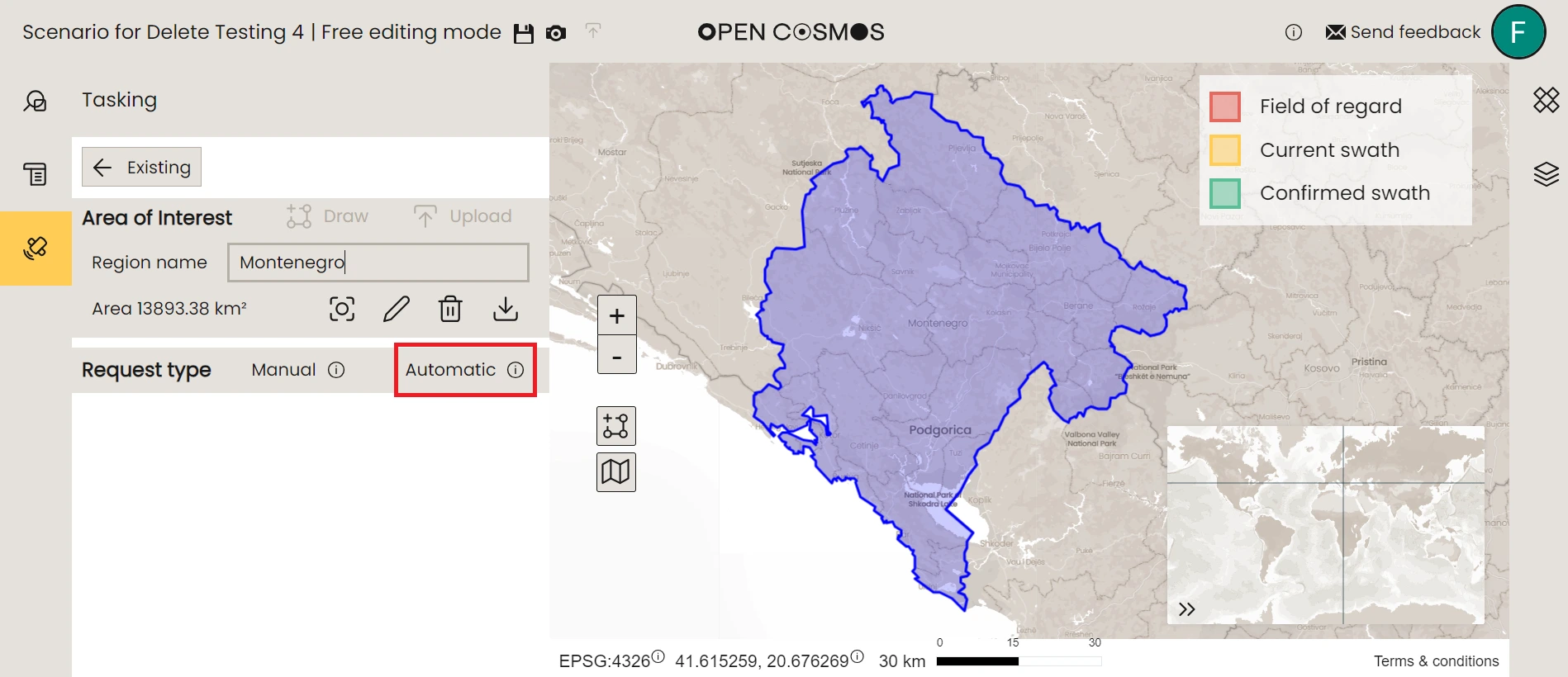
To start creating an coverage tasking request, first select the “Coverage” button after creating the area(s) of interest:
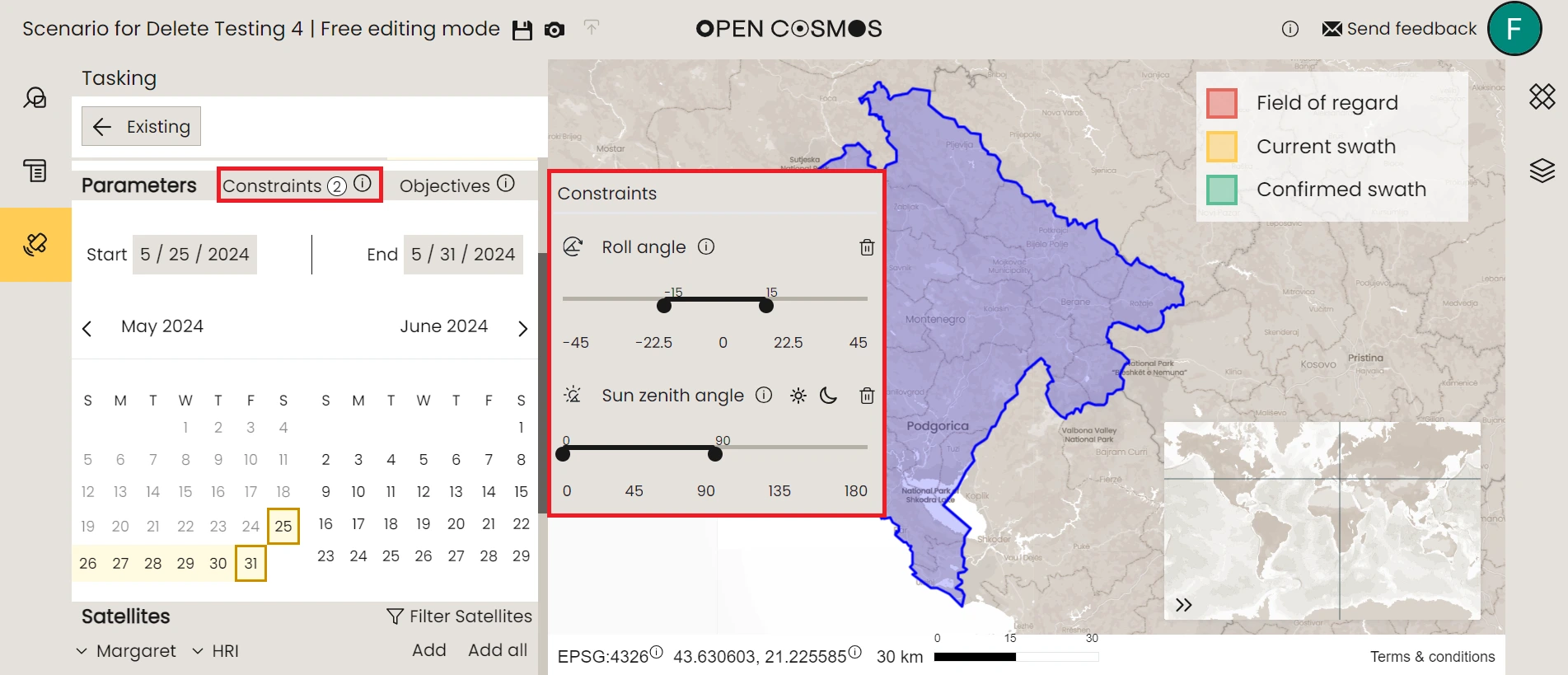
Similarly to the Scene tasking requests, there are two types of constraints supported, which are applied on a request basis:
- Observation Zenith Angle (OZA): defines the range of angles between the satellite vector and the local zenith measured at the observation point. Lower absolute Obervation Zenith Angle improves image quality while higher angles increases area coverage.
- Sun Zenith Angle (SZA): defines the range of angles between the ground zenith vector at the observation point, and the sun vector. An example use case is setting the SZA constraint to be limited between 0 and 90°, which ensures suggested activities are always illuminated.
The set of constraints are applied to all the satellies considered for the request.
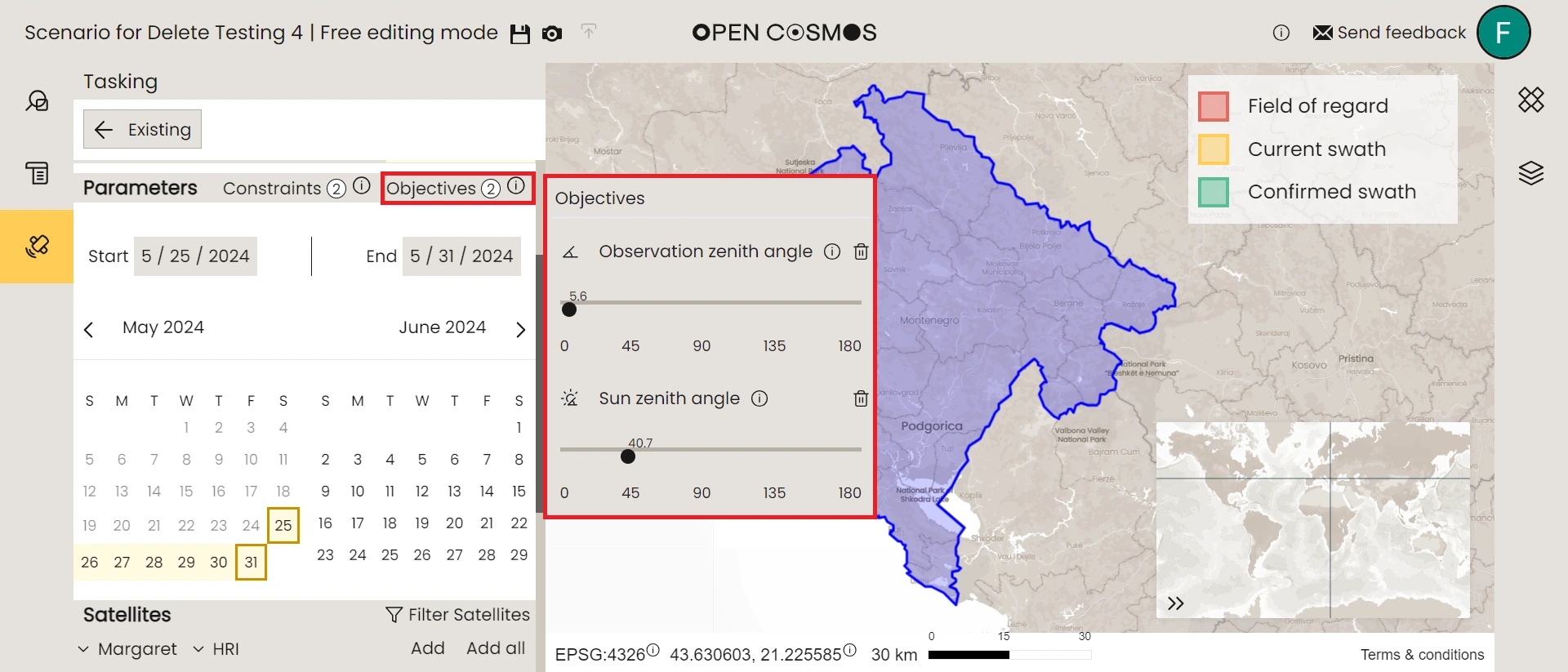
It is also possible to select the desired objectives to guide the optimisation algorithm. By setting objectives, the algorithm will try to find the optimal activities that are closer to the set target values. By default, the objective of 100% coverage is set, but additional objectives can be applied on a request basis:
- Observation Zenith Angle (OZA): the angle between the satellite vector and the local zenith measured at the observation point.
- Sun Zenith Angle (SZA): the angle between the ground zenith vector at the observation point, and the sun vector.
Keep in mind that due to the conflicting nature of the multiobjective optimisation, there is no single optimal solution. As an example, the objective of low OZA conflicts with the objective of maximum coverage. The decision-maker in the algorithm selects the plan that covers the most area.
The start and end dates must be applied to constrain the search, using the calendar view:
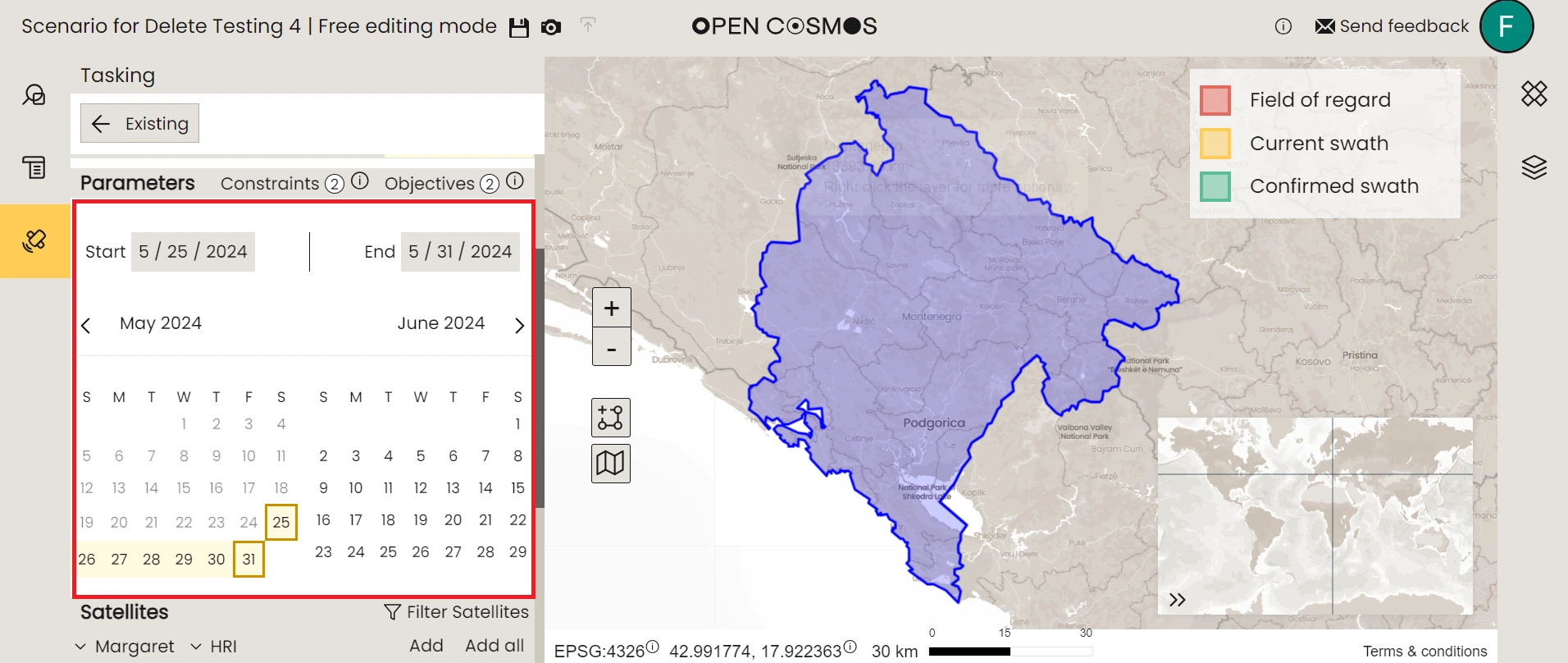
The calendar allows for searching for opportunities up to 3 months in advance. However, the optimiser is limited to search for the activities plan within 10 days of the current date. As time goes by, the optimiser will keep adjusting the plan.
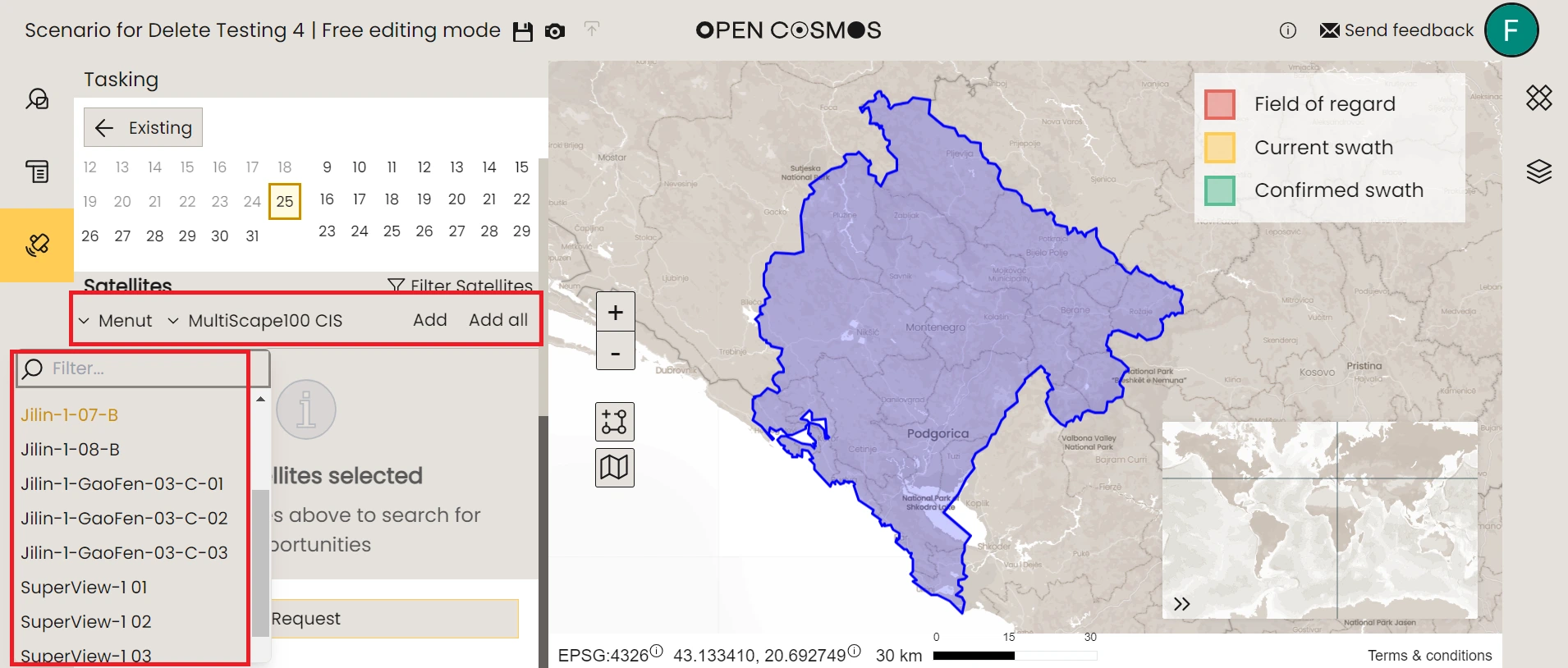
We can select the satellites and instruments to task from the dropdown menus. Multiple satellites and instruments from the same satellite can be selected. After selecting the desired satellite and instrument, click on the Add buttom to add the satellite to the tasking request:
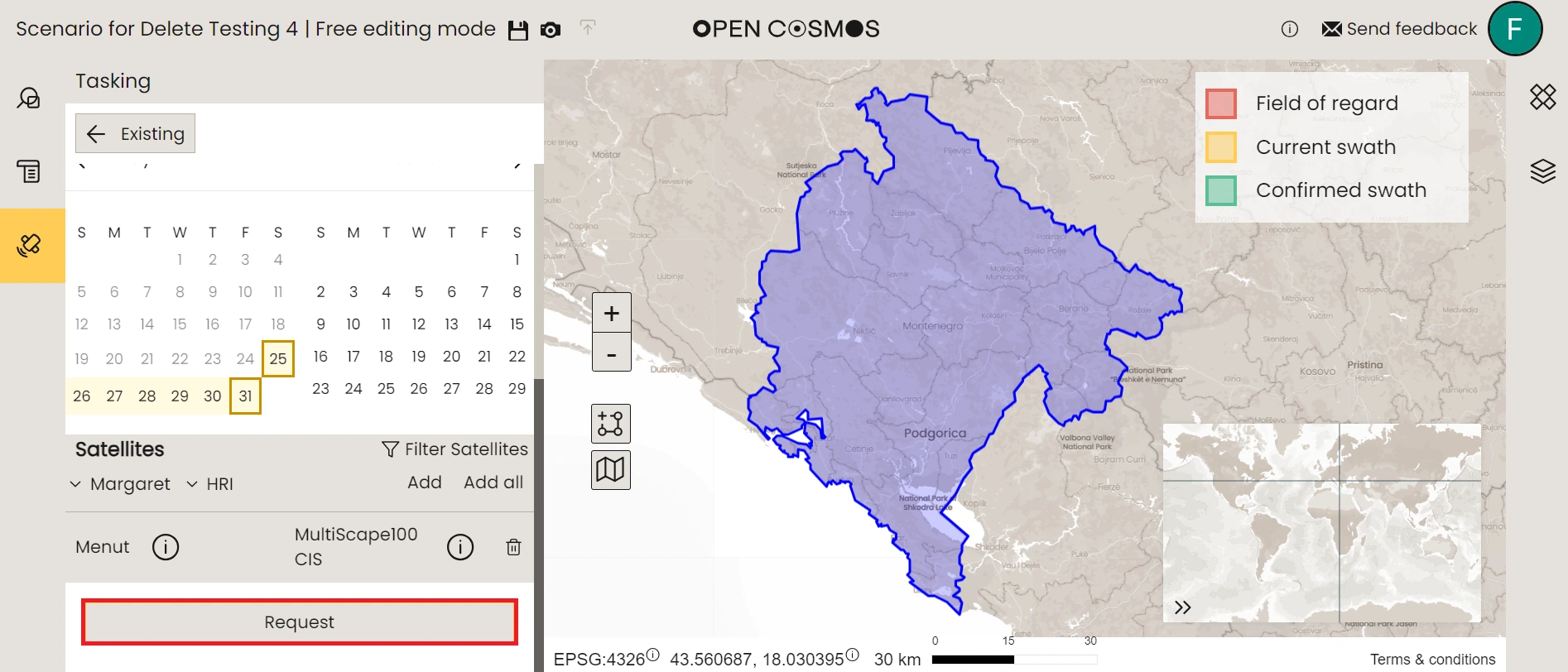
Once satisfied with all the settings, select the “Request” button to start the tasking request feasibility check and advance to the request summary overlay:
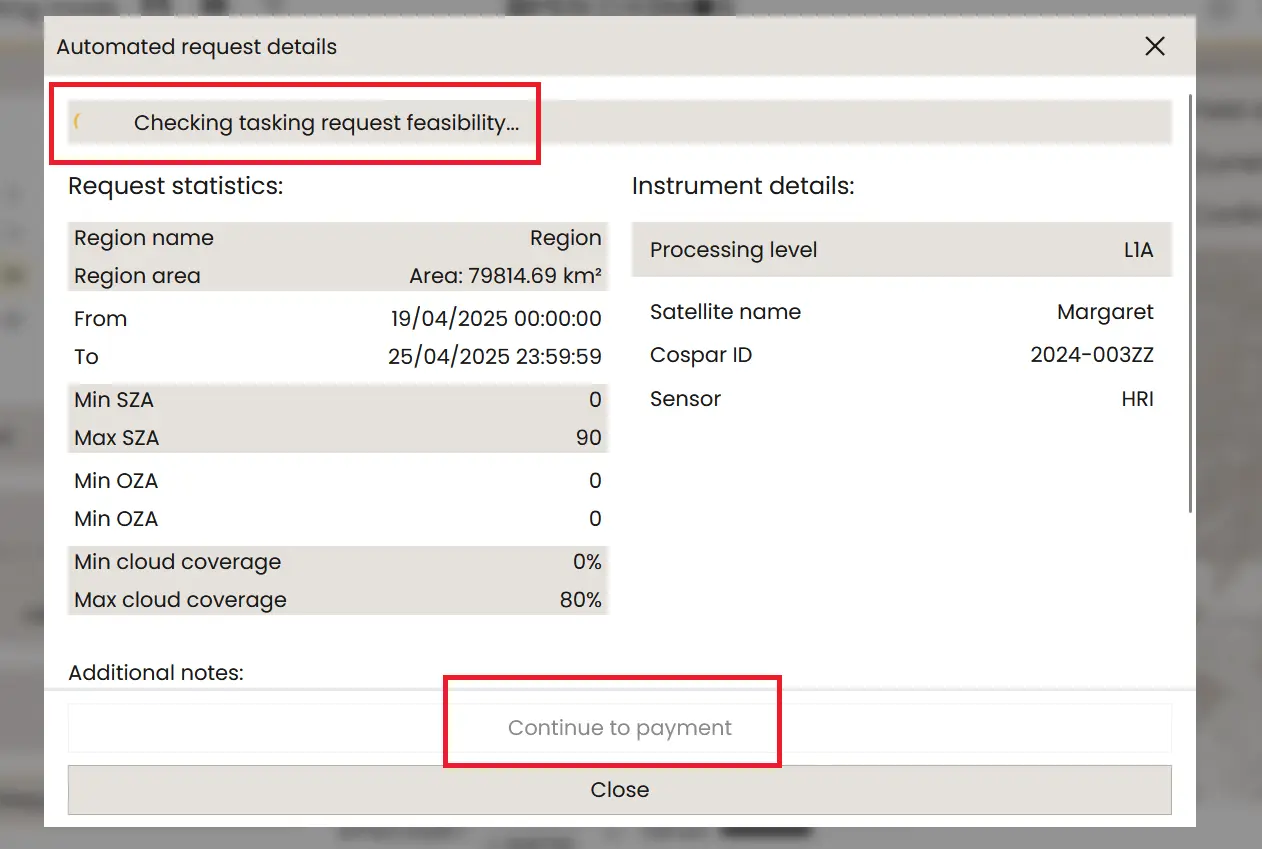
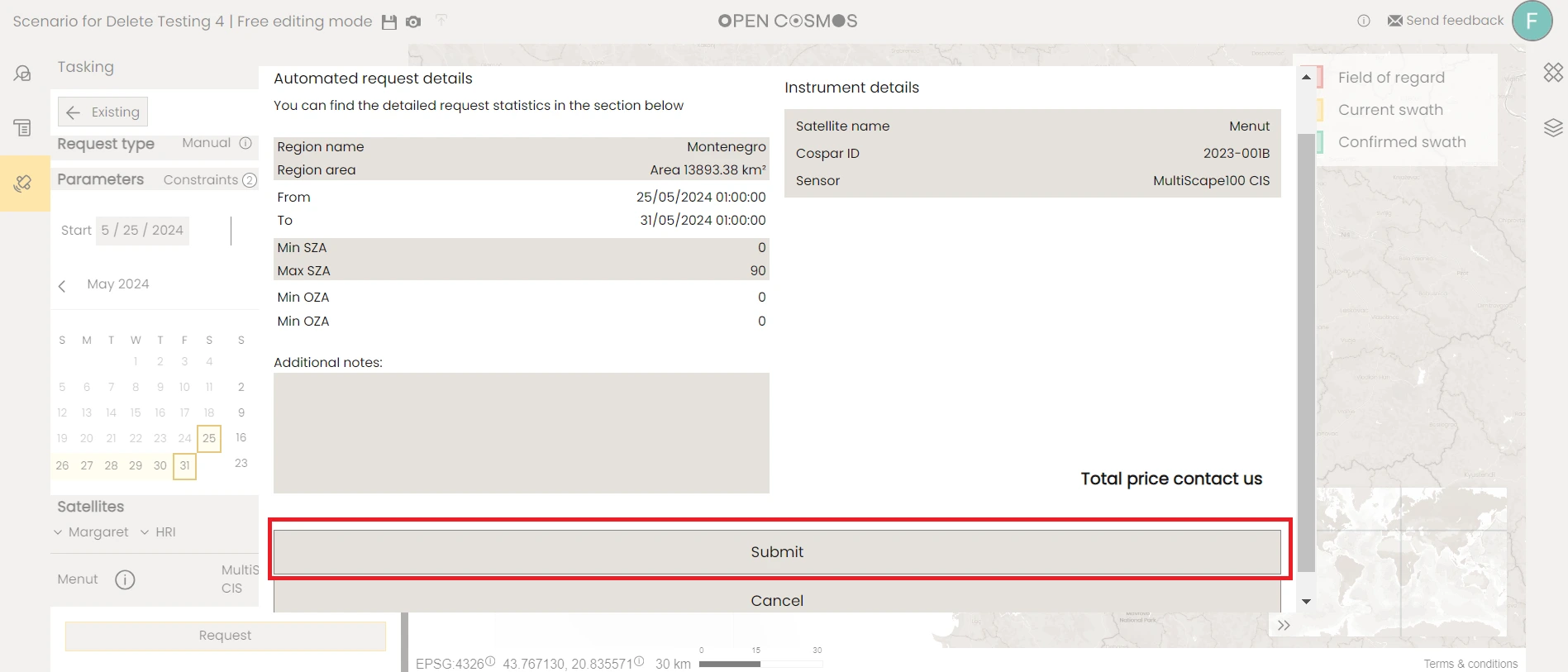
In the request summary overlay, you can view a summary of the tasking request, in particular the selected constraints, time window, and instrument details. There is an option to add a note to the request, to inform Open Cosmos of any special requests or information. While the tasking request feasibility is being assessed, a loading spinner is shown and the "Continue to Payment" button is disabled.
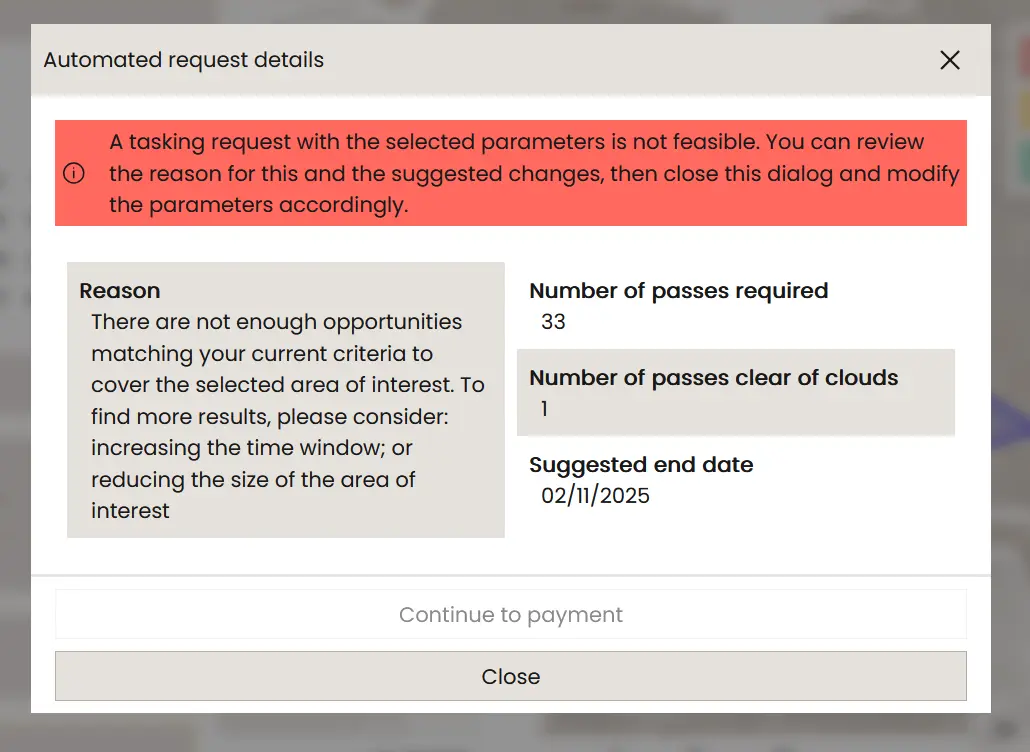
If the tasking request feasibility check fails, an overlay will be shown with the reason why the tasking request is not feasibile and suggested actions to take to make the request feasibile.
If the tasking request passes the feasibility check, the "Continue to Payment" button is enabled. Selecting it will put the tasking request in queue for the optimiser and redirect the user to the payment page.
Once the optimiser proceeds to find the optimal plan for this request, it is automatically populated with the suggested activities, which are then reviewed at Open Cosmos.
Where to next