DataCosmos Projects
DataCosmos Projects are convenient, user-defined workspaces for storing items specifically created for that project. Projects provide a useful environment for all project members to quickly access relevant information.
Projects items include:
- Data products (images) selected from the DataCosmos catalog archive.
- Data views – saved snapshots of specific satellite imagery, rendered within a geographic context. These include a selection of basemaps, customizable color corrections, band algebra, and vector features/assets.
- Tasking requests – scheduled and completed tasking requests from the Open Constellation fleet of satellites.
When accessing DataCosmos for the first time, users will be required to select a project to work from.
The following sections provide a step-by step guide on how to create new and select exisitng projects.
Creating a new project
- To create a new project or change the current one, click the current project name in the top left of the screen.
- In the overlay that appears, users can switch, edit, delete, and create projects.
- Select create new project.
- Enter the name of the new Project.
- Select your organisation from the dropdown menu.
- Provide a brief description of the project.
- Select Save to save a new project.
How to create a project.
Opening a project
- Click the current project name in the top left of the screen.
- Select the project title.
- Select Open Project.
- You now have quick access to the stored items within your chosen project.
How to open a project.
Further project options
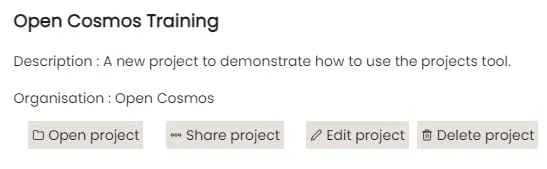
If you have the necessary project permissions, you will see additional options when you select a project from the list of available projects.
These options allow you to share, edit, or delete the selected project.
-
The Edit Project option redirects you to the initial project set-up window, allowing you to change the Project name, Organistaion, and the Project Description.
-
The Delete Project option allows you to delete the project and its stored contents.
-
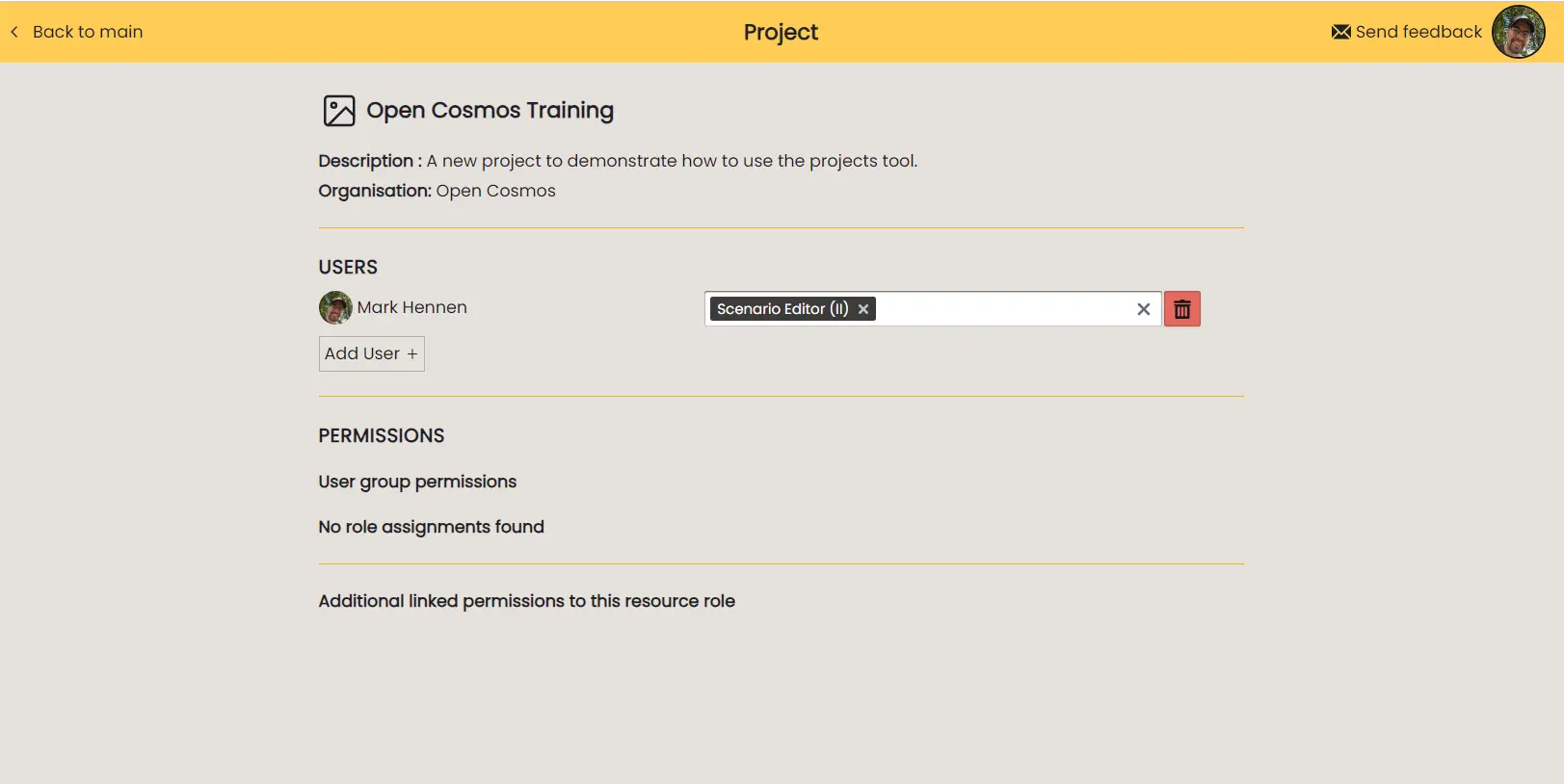
The Share Project option provides the ability to invite users to the project, by providing their login email address and assign specific permissions.
Where to Next
← Getting Started | Project Tools →